

Build your first chart
Before you start
You need a connected source: a Notion database (see Connect a Notion database), sample data, a dataset one of the connectors synced, an uploaded CSV file, or a dataset pushed through the API. Each plan saves a set number of charts: 5 on Free, 25 on Starter, unlimited on Pro, unlimited on Business, unlimited on Enterprise. Pricing has the rest.
Or start from a template: duplicate a Notion template, connect your copy, and its three charts are built for you.
Pick a source and a chart type
- Open Home, which lists your sources under Data sources. Pressing New chart on the Charts page lands there too. Files and pushed datasets sit under Files and API datasets.
- Select a source. The builder opens on it; on a wide screen the preview sits beside the controls.
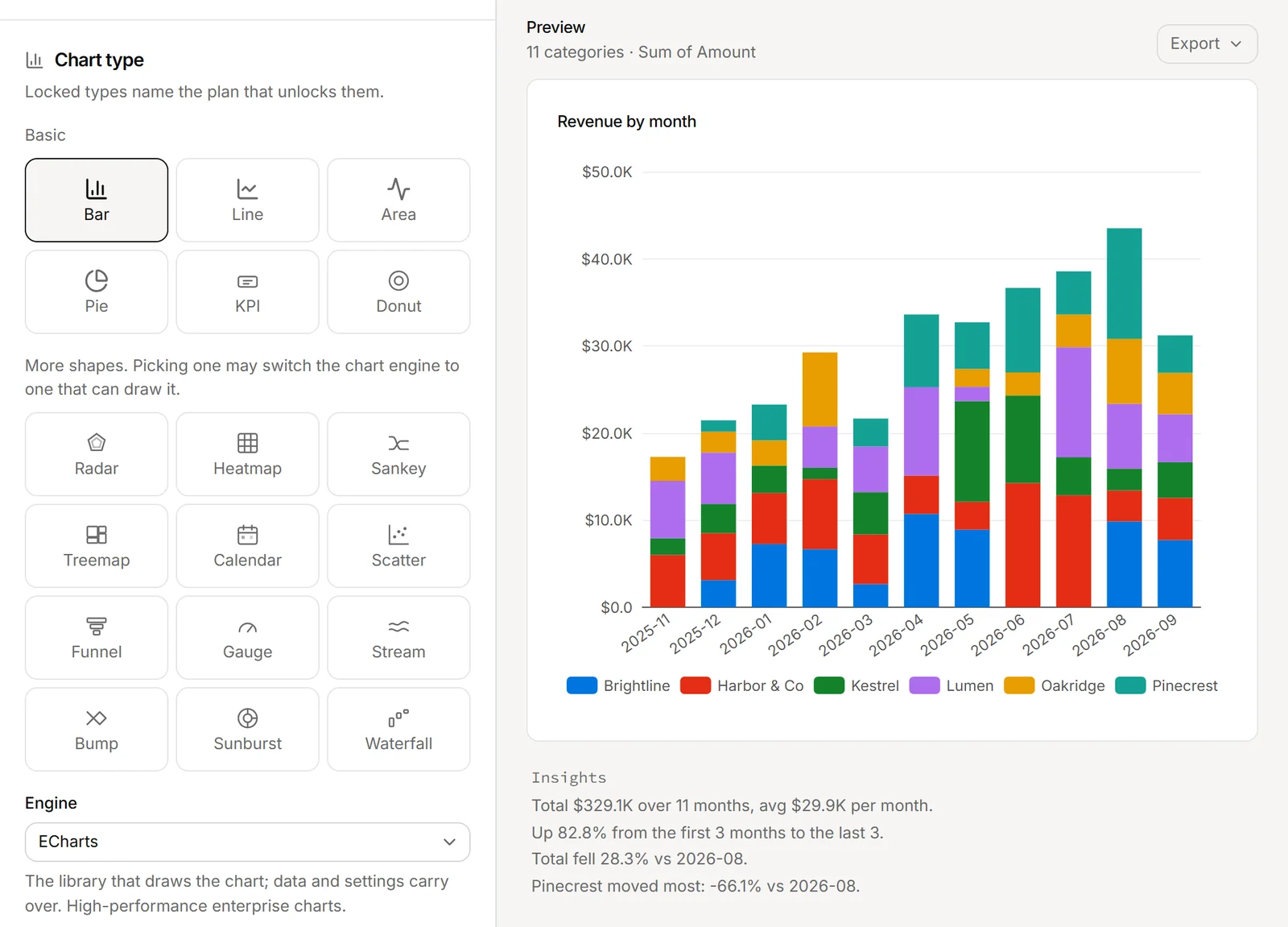
- Under Chart type, pick a type. Types: bar, line, area, pie, KPI on every plan; donut, radar, scatter, heatmap, funnel, gauge from Starter; sankey, treemap, calendar, stream, bump, sunburst, waterfall from Pro. A locked type names the plan that unlocks it.
Some types can be drawn more than one way. When they can, an Engine menu appears under the types: it picks the library that draws the chart, and your data and settings carry over. Engines your plan lacks show the plan they need.
Choose the axes and the aggregation
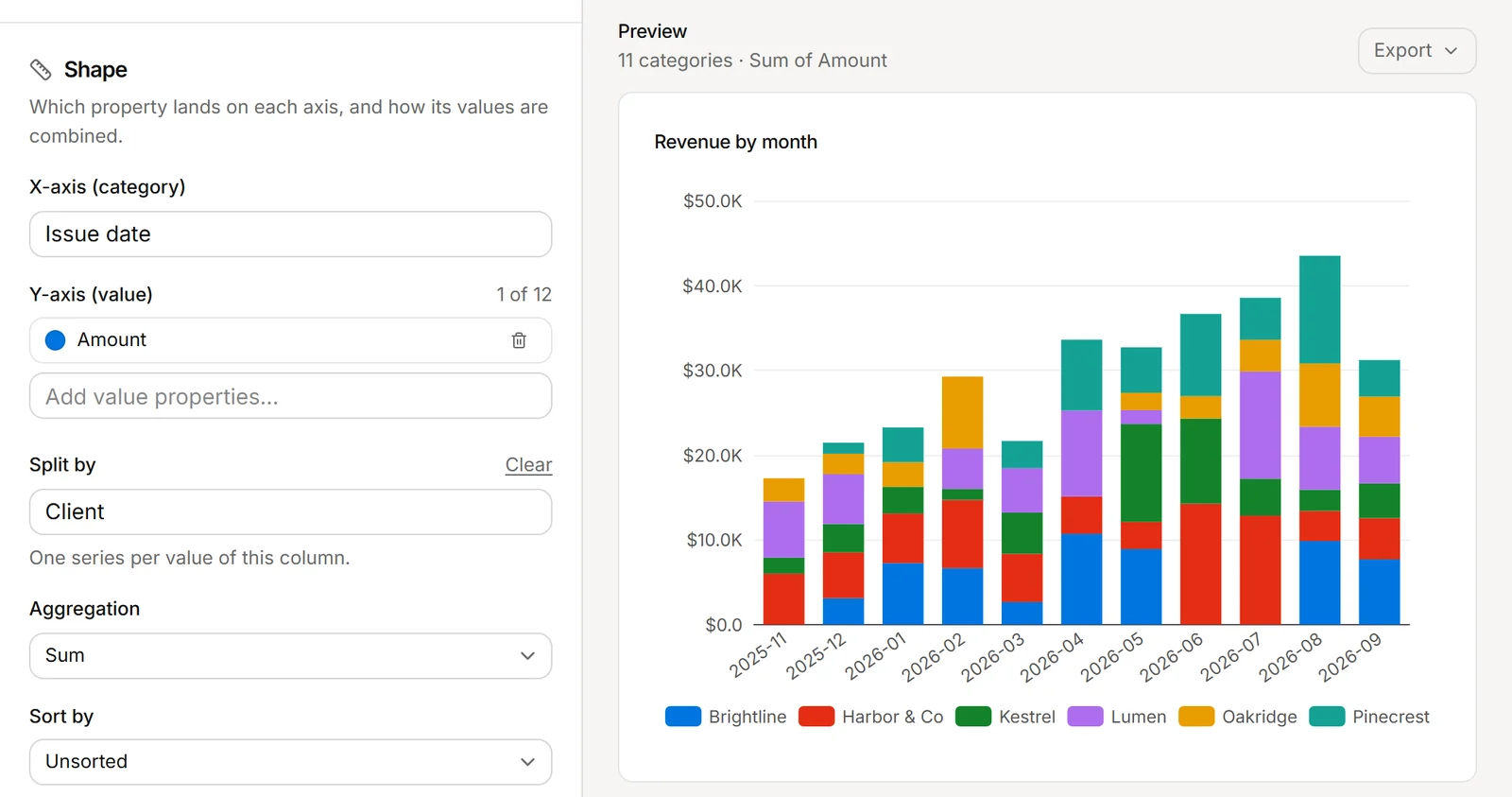
- In Shape, pick the X-axis (category): one bar, point or slice per value. A date range is bucketed on its start date.
- Pick the Y-axis (value): the column to add up. With no value column, every row counts as 1.
- Pick the Aggregation: Count, Sum, Average, Min, Max or Count unique.
When every Y column is a type that cannot be added up (title, select, status, multi-select, date, people, relation, URL, email, phone, files, or a created or edited time or person), the menu offers only Count and Count unique. Number, text, checkbox, formula and rollup columns keep every method. A KPI or gauge is one number over every row, so it has no X-axis.
Filter and group
In the Data section, Rows included starts with every row. Press Add rule to narrow it down; a row counts only when every rule holds. The conditions a rule offers depend on its column:
- Text and tags: Equals, Does not equal, Contains, Does not contain, Is empty, Is not empty.
- Numbers: Equals, Does not equal, Greater than, Less than, Is between, Is empty, Is not empty.
- Dates: the number conditions plus In the last, In the next and In the current. “In the last 7 days” includes today, so it spans 8 calendar days.
- Checkboxes: Equals, Is empty, Is not empty.
- A column whose type is not known, such as a formula or a CSV column, offers every condition.
When X is a date, Date grouping buckets it into periods: week / month on every plan; day / quarter from Starter; year from Pro. Days, weeks and months start at midnight in the zone you set under Time zone.
Split, percent and running totals
- More than one Y column draws one series each. Series per chart: 1 on Free, 3 on Starter, 10 on Pro, 12 on Business, 12 on Enterprise. Pie, donut, KPI, gauge, funnel, treemap, calendar and waterfall charts draw one value.
- Split by draws one series per value of a column, such as one line per status (Starter). It works with at most one value column, on types that draw one mark per series, such as bar, line and area.
- Percent of total shows each value as a share of the total, on a bar, line or area chart with Sum or Count.
- Cumulative turns a bar, line or area chart into a running total, where empty days stay flat (Starter). It is not available with Count unique. While it is on, Percent of total is switched off; turn Cumulative off and Percent of total comes back as you left it.
Format the numbers
Open Style and set the Number format for the value axis, tooltips and KPI number: Auto, Number, Compact, Percent or Currency. Any style but Auto adds Decimals, Separators (1,234.5 or 1.234,5), and a Prefix and Suffix. With Percent of total on, the format is set for you.
The same section holds annotations (Pro): open Annotations and press Add annotation to draw a vertical reference line at a point. The panel shows where the chart can draw one: bar, line and area charts, not horizontal bars, on the engines that support it, and a heatmap on one engine. It also shows whenever the chart already has annotations, with a note when this type cannot draw them.
Save and embed
- Name the chart in the bar at the top.
- Press Save & embed. The Chart saved window shows the embed link; copy it.
- In Notion, type /embed and paste the link. Embed a chart in a Notion page covers the rest.
After the first save, the button reads Update chart, and the link you pasted shows each update.
If it does not work
The preview says “No rows match the current filters”
Remove the last rule you added in Rows included, or widen a date window.
Sum, Average, Min and Max are missing
Every Y column is a type that cannot be added up, so only Count and Count unique apply.
You cannot add another Y column
The type draws one value, or the chart is at your plan’s series cap (1 on Free, 3 on Starter, 10 on Pro, 12 on Business, 12 on Enterprise). Without a cap, the builder handles 12 series at once.
More fixes, including Split by, Percent of total and annotations: Charts.
Questions
Why is the Time zone field missing?
It shows only when it changes the result: when a date X-axis is grouped by period, or when a rule uses In the last, In the next, In the current, or Is between on days.
How many series can one chart draw?
It depends on your plan: 1 on Free, 3 on Starter, 10 on Pro, 12 on Business, 12 on Enterprise.
Can a chart show each value as a share of the total?
Yes. On a bar, line or area chart with Sum or Count, turn on Percent of total. While Cumulative is on, Percent of total is off; it comes back when you turn Cumulative off.
Do edits to a saved chart change its embed?
Yes. Press Update chart and the embed link you already pasted shows the new version.