

Build and share a dashboard
Before you start
Dashboards and their share link come with the Starter plan. 1 dashboard on Starter, 10 dashboards on Pro, unlimited dashboards on Business. Pricing compares the plans.
A dashboard holds charts you already saved, so save at least one chart first.
Create a dashboard
- Open Dashboards in the sidebar.
- Press New dashboard at the top. Before your first one, Create your first dashboard in the middle of the page does the same.
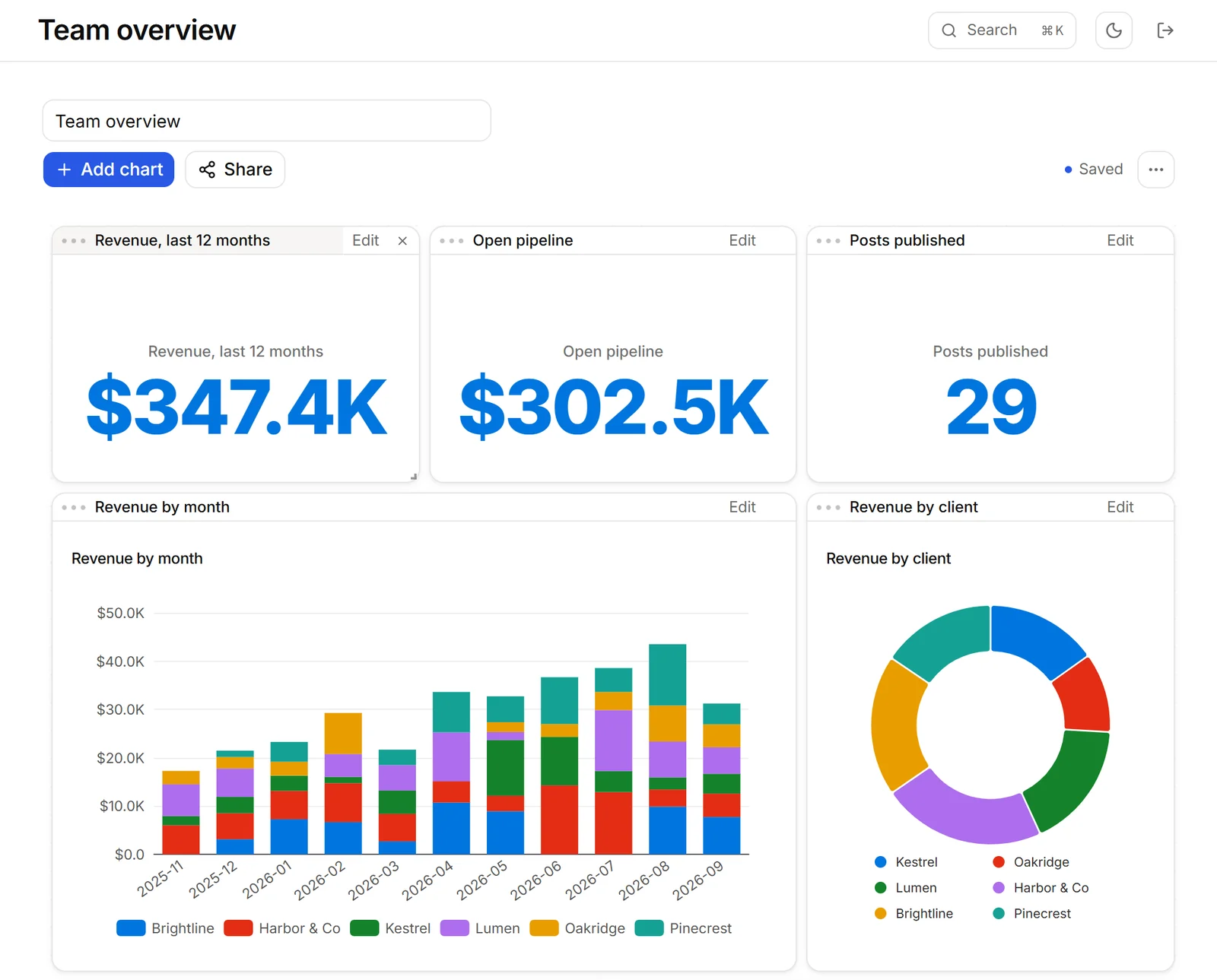
- The editor opens on an empty canvas named Untitled Dashboard. Type a name in the name field at the top and press Enter.
- Press Add chart and pick a saved chart. Filter the list by name or type when it is long.
Arrange blocks
- Drag a block by its title strip to move it.
- Drag its bottom right corner to resize it.
- From the keyboard, focus a block’s title strip: the arrow keys move it, Shift and an arrow key resize it.
- Changes save as you go. The editor shows Saved once they are stored.
Share it
- On the dashboard, press Share, then Turn on.
- Copy the public link.
- In Notion, type
/embedand paste it. The whole dashboard shows in one embed.
Sharing needs the Starter plan. Embed a dashboard covers the Notion side.
How it loads
- Blocks built on the same database share one read per page load.
- On a phone, the blocks stack in reading order.
If it does not work
The embed says it is not available
The share link is off. Open Share on the dashboard and press Turn on. Embeds already using the link work again, and the button reads “Shared” while sharing is on. A deleted dashboard also shows this message. Other causes: Embeds.
An old embed stopped after you rotated the link
Rotating replaces the link for good. Paste the new one into each Notion page that used the old one.
The button reads Upgrade for more dashboards
Your plan has used all of its dashboards. Delete one you no longer need with Delete dashboard in the dashboard’s ••• menu, or upgrade. On a plan without dashboards the button reads See plans with dashboards.
The editor says Not saved
A message says why. When it says the dashboard changed somewhere else, someone edited it in another tab or another account: reload the page before editing again.
Questions
How many dashboards can I make?
1 dashboard on Starter, 10 dashboards on Pro, unlimited dashboards on Business. Dashboards and their share link come with the Starter plan.
Does a dashboard copy my charts?
No. It only arranges charts you already saved. Edit a chart and every dashboard showing it updates too.
Can I edit a dashboard on my phone?
No. Editing needs a wider screen. On a phone the blocks stack in reading order, so you can read the dashboard but not rearrange it.
What happens to old embeds when I rotate the link?
They stop working, and the old link cannot be restored. Paste the new link everywhere the dashboard was embedded.